Picking a meeting time with a poll is the easy half. The annoying half comes after: open Calendar, retype the winning time, then hunt through the thread for everyone’s email address, one by one. Schedule it removes that step. The poll already knows the winning time and who was asked, so it hands both straight to Google Calendar.
Short version: votes come in, you click 📅 Schedule this time, and Google Calendar opens with the time and everyone’s invite ready. One click, then Save.
What you need
- Polls for Gmail on any plan, Free included. Install the add-on if you haven’t yet.
- A poll with times in it. The best fit is a date & time poll. A regular single- or multiple-choice poll also works if you typed the times in yourself (“Tuesday 3pm”, “Oct 9 at 2:30pm”).
- Google Calendar, signed in with the account you want the event on.
How to schedule the winning time, step by step
1Send a date & time poll from Gmail
In Gmail, hit Compose, open the Polls for Gmail add-on, and choose “Pick a date & time.” Add your candidate slots, either one at a time or with Grid mode (pick some dates and some times, and we build every combination). Insert the poll, add your recipients and send.
Leave the poll-…@pollsforgmail.com address in BCC. That’s how Polls for Gmail learns who the email went to (from the headers only, never the message body), and it’s what fills your guest list later. If you use BCC yourself, insert the poll first and add your own BCC addresses after.
2Watch the votes and spot the winner
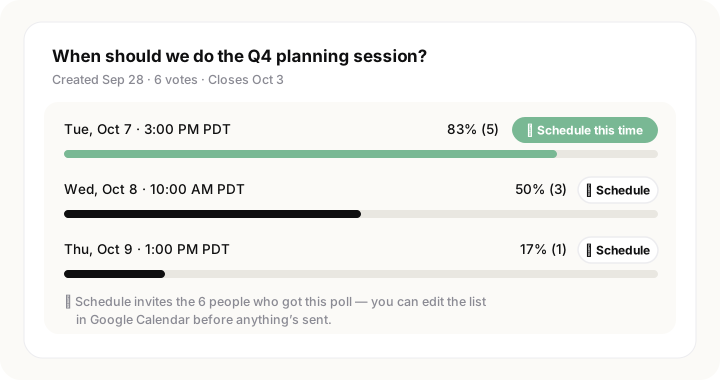
Open your dashboard. Every time slot shows its votes, and each one has a Schedule button. The leading time gets a highlighted Schedule this time button. Under the results, a short note tells you exactly who’ll be invited, so there are no surprises in Calendar.
3Click Schedule
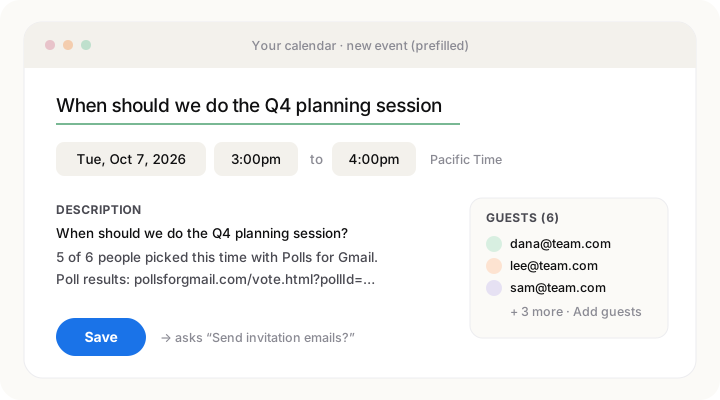
One click opens Google Calendar in a new tab with a new event already filled in:
- Title: your poll question.
- When: the time you clicked, for your default meeting length (1 hour unless you change it in Settings). If a slot was written as a range, like “10–11:30am”, that range is used instead.
- Guests: everyone who received or answered the poll (more on that below).
- Description: how many people picked this time, plus a link to the poll results.
4Review and save in Google Calendar
You’re now on Google Calendar’s own event page, so everything is still editable. Change the length, add or remove guests, add a Google Meet link, or pick a room. When it looks right, click Save. Calendar asks “Send invitation emails?”, and nothing reaches anyone until you say yes.
Or schedule straight from your inbox
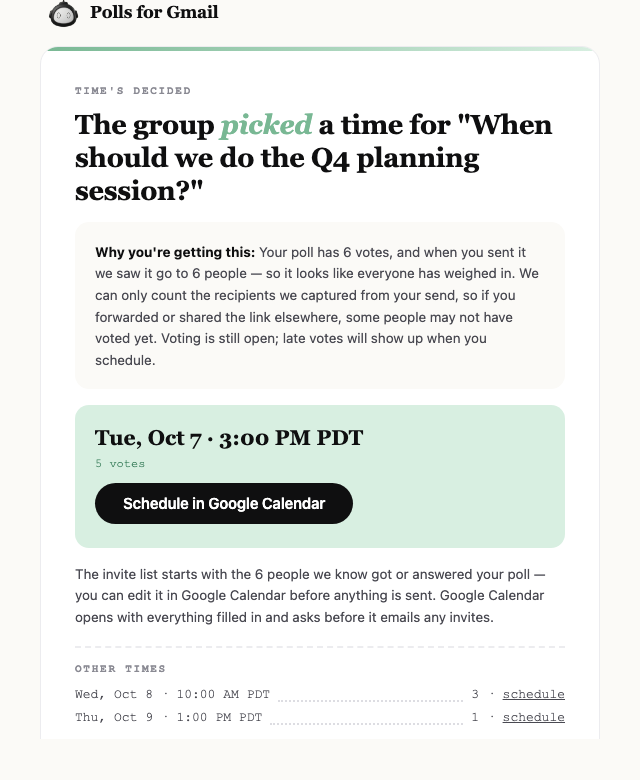
You don’t even have to open the dashboard. When a scheduling poll looks decided, we send you one “Time’s decided” email with the winning time and a Schedule in Google Calendar button. The button does the same one-click trip into Calendar.
The email goes out once per poll, on whichever of these happens first, and it always tells you which one it was:
- Everyone seems to have voted. The number of votes reached the number of people we saw the poll go to. We can only count recipients captured from your send, so the email says so plainly.
- Your deadline passed. Voting closed at the time you set.
- A Zapier automation closed it. No dashboard was open, so the email carries the button instead.
Close a poll yourself (from the dashboard or the Gmail sidebar) and there’s no email, because you’re already in the right place. You’ll be offered Schedule it on the spot instead.
Who gets invited, and why the list is sometimes empty
The guest list comes from two places: the recipients captured when you sent the poll from Gmail, plus any voters who typed in their email address (if the poll asked for it). You, the organizer, aren’t added, because you own the event.
The note under your results tells you which case you’re in before you click:
| What the note says | What it means |
|---|---|
| Invites the 6 people who got this poll | We captured your recipients when you sent it. Everyone’s on the list. |
| Invites the 3 voters who left their email | We didn’t see who the poll went to, but some voters gave their email. The list is partial; add the rest in Calendar. |
| We don’t know who received this poll | No recipients and no voter emails, so you’ll add guests in Calendar. |
A poll ends up with no captured recipients when it was created in the dashboard and shared by link, when the capture BCC was removed before sending, when it was sent from a different “send as” address than your Polls account, or when it’s an older poll from before recipient capture existed.
Polls where you typed the dates yourself
Not everyone uses the date & time poll type. If most of a regular poll’s options read as dates or times, Polls for Gmail treats it as a scheduling poll and gives it the same Schedule buttons. That includes “Tuesday 3pm”, “Oct 9 at 2:30pm”, “Mon 10am–11:30am” and even “Friday” (which becomes an all-day event). Options like “None of these work” simply don’t get a button.
Typed times that don’t name a timezone are read in your default timezone from Settings, or your browser’s if you haven’t set one. Since we’re reading text you wrote, give the time a quick glance on Calendar’s page before saving.
Settings: turn it off or change the length
In your dashboard, open Settings → Scheduling:
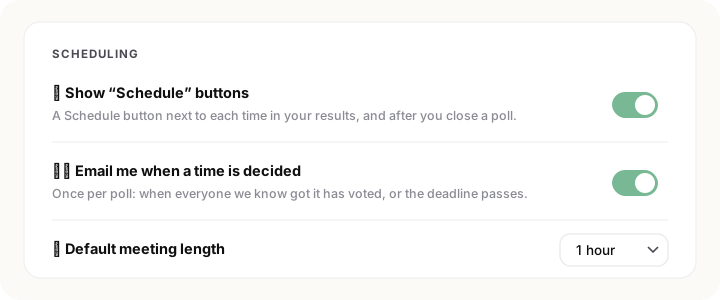
- Show “Schedule” buttons: hides the buttons and the after-close prompt if you’d rather not see them.
- Email me when a time is decided: turns the once-per-poll email on or off.
- Default meeting length: 15 minutes up to 2 hours. You can still change it per event in Calendar.
Is it safe? What access does it need?
None beyond what you already have. Schedule it uses Google Calendar’s standard “create event” link, so Polls for Gmail never reads or writes your calendar, and there’s no new permission to approve. The event only exists once you click Save in Google Calendar, and invites only go out when Calendar asks and you agree.