Chasing votes is the least fun part of running a poll. You send the email, half the group answers in an hour, and then you spend the rest of the week deciding whether it's "too soon" to nudge the other half. Auto-Remind exists so you never have that internal debate again: one setting, and the follow-up handles itself — with guardrails that make it impossible to nag anyone. (For the timing and etiquette behind those guardrails, see our companion guide on how to remind people to vote without being annoying.)
Prefer to watch? Here's the whole feature in two minutes:
How Polls for Gmail knows who to remind
When you insert a poll into a Gmail draft, the add-on quietly adds a BCC address — poll-<id>@pollsforgmail.com — to that draft. When you hit send, the BCC copy tells Polls for Gmail who the email went to, from the message headers only. The body of your email is never stored.
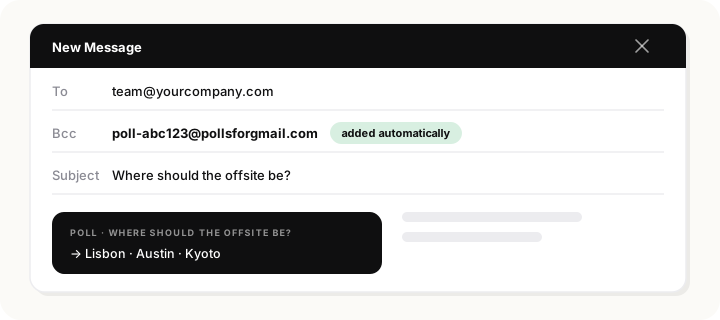
That captured recipient list is what reminders run against. Two consequences worth knowing up front:
- Deleting the BCC opts out. The poll still works — it just won't know who to remind.
- Link-shared polls have no list. Polls created in the dashboard and shared by link have no captured recipients, so automatic reminders can't run there — use the manual button and paste addresses instead (covered below).
- Inserting a poll replaces anything already in BCC. Gmail only lets add-ons set a draft's BCC field, not add to it — so if you'd typed BCC addresses before inserting the poll, they're swapped out for the capture address. The fix is simply order: insert the poll first, then add your own BCC addresses — anything you add after inserting is kept, alongside the capture address.
Setting up Auto-Remind, step by step
1Make sure you're on Pro
Vote reminders — manual and automatic — are part of the Pro plan ($150/year, alongside unlimited polls, up to 5 questions per poll, 20 options, CSV/Sheets export, and no branding). Free and Standard accounts can create polls but can't send reminders. (Vote alerts — the emails that tell you when someone votes — are a different feature and are on every plan.)
2Open Settings in your dashboard
Go to your Polls for Gmail dashboard and open Settings.
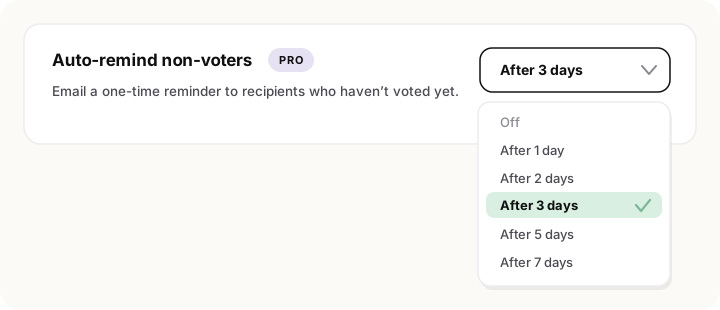
3Turn on "Auto-remind non-voters" and pick a delay
Find the Auto-remind non-voters row and choose how long to wait before the reminder goes out: 1, 2, 3, 5, or 7 days after you send the poll. Three days is a good default for most polls — long enough that everyone has seen the original, short enough that the question is still fresh. Save your settings.
4Create and send your next poll from Gmail
Compose an email, insert a poll with the add-on, and send it like any other message. The BCC capture address records who it went to. One important detail: Auto-remind applies to polls created after you save the setting — it doesn't retroactively attach to polls you've already sent. For those, use the manual reminder below.
5Let the reminder send itself
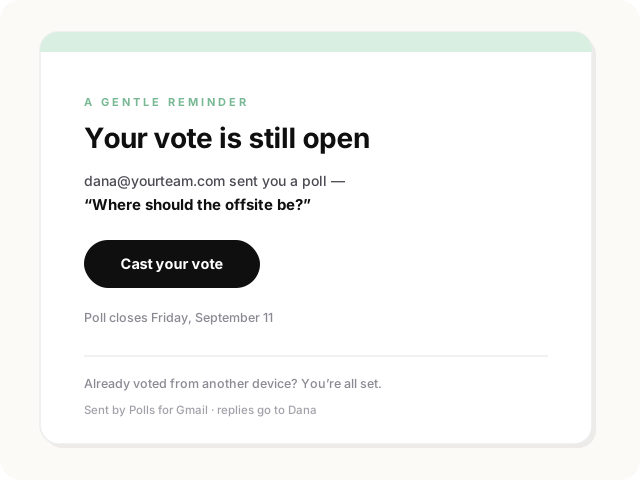
After your chosen delay, everyone who hasn't voted gets one friendly email with a button back to the vote. People who already voted are skipped, no one is ever reminded twice, and if your poll has a deadline, it's shown right in the email.
Prefer to send reminders by hand?
The manual version lives on every poll card in your dashboard. Click "Remind non-voters," and a dialog opens — prefilled with the captured recipients for polls sent from Gmail, or ready for you to paste addresses for link-shared polls. Review the list and click Send reminders.
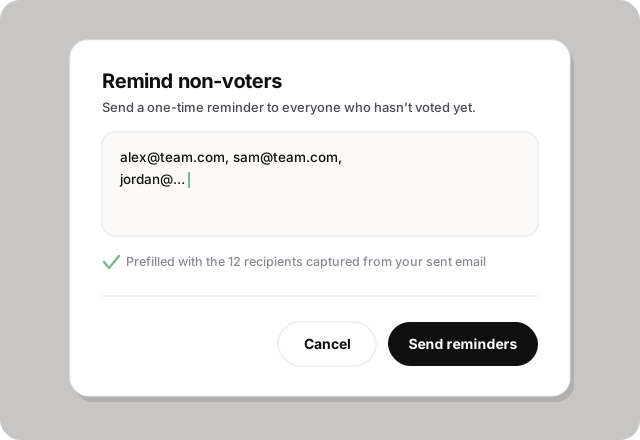
Manual and automatic reminders share one ledger: each person gets at most one reminder per poll, ever, no matter which path sent it. Daily sending caps apply too — you can't accidentally spam a list even if you try.
What the reminder email looks like from the other side
It's deliberately small: a "gentle reminder" note, the poll question, who asked, one dark Cast your vote button, and the deadline if there is one. It closes with an escape hatch — "Already voted from another device? You're all set." — so nobody who responded feels accused. It arrives as a fresh thread rather than a reply, because the original thread is already buried; that's also why one reminder is the right number.