What you get
Everything you need, without leaving your inbox
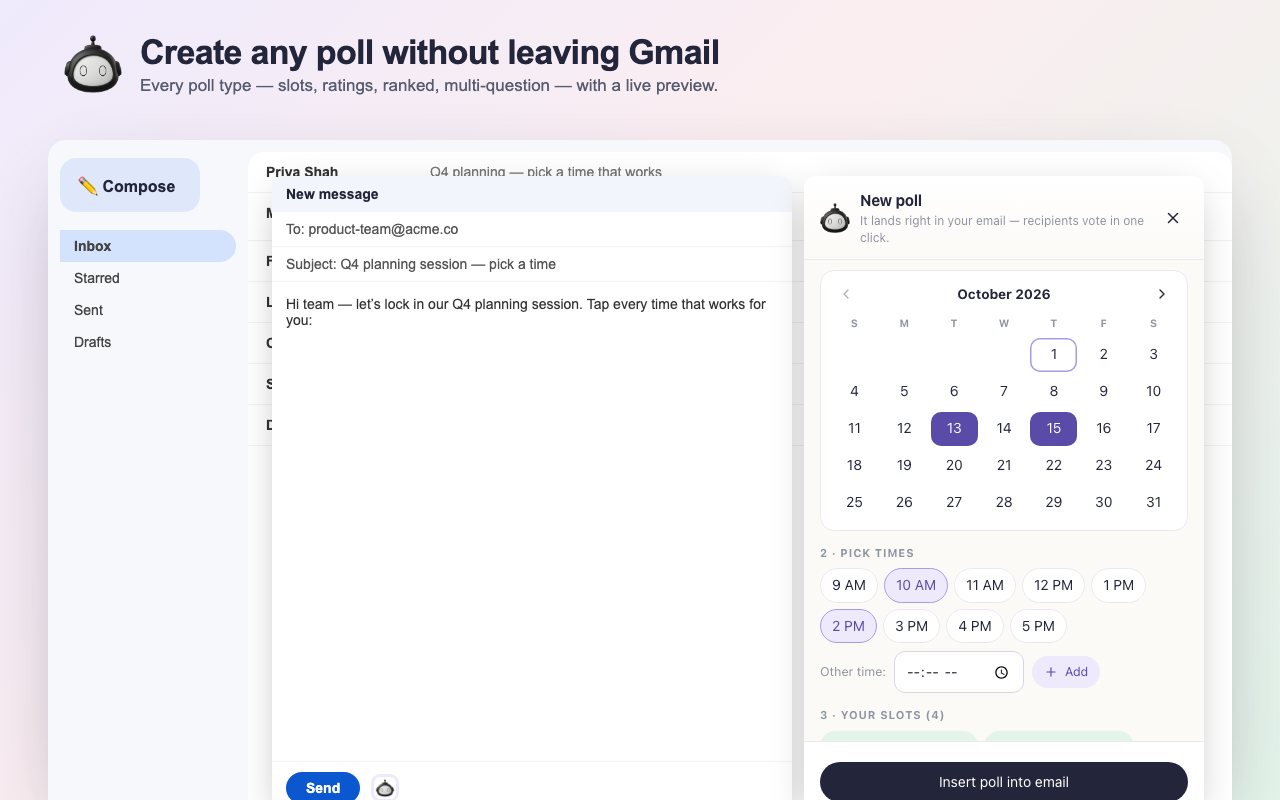
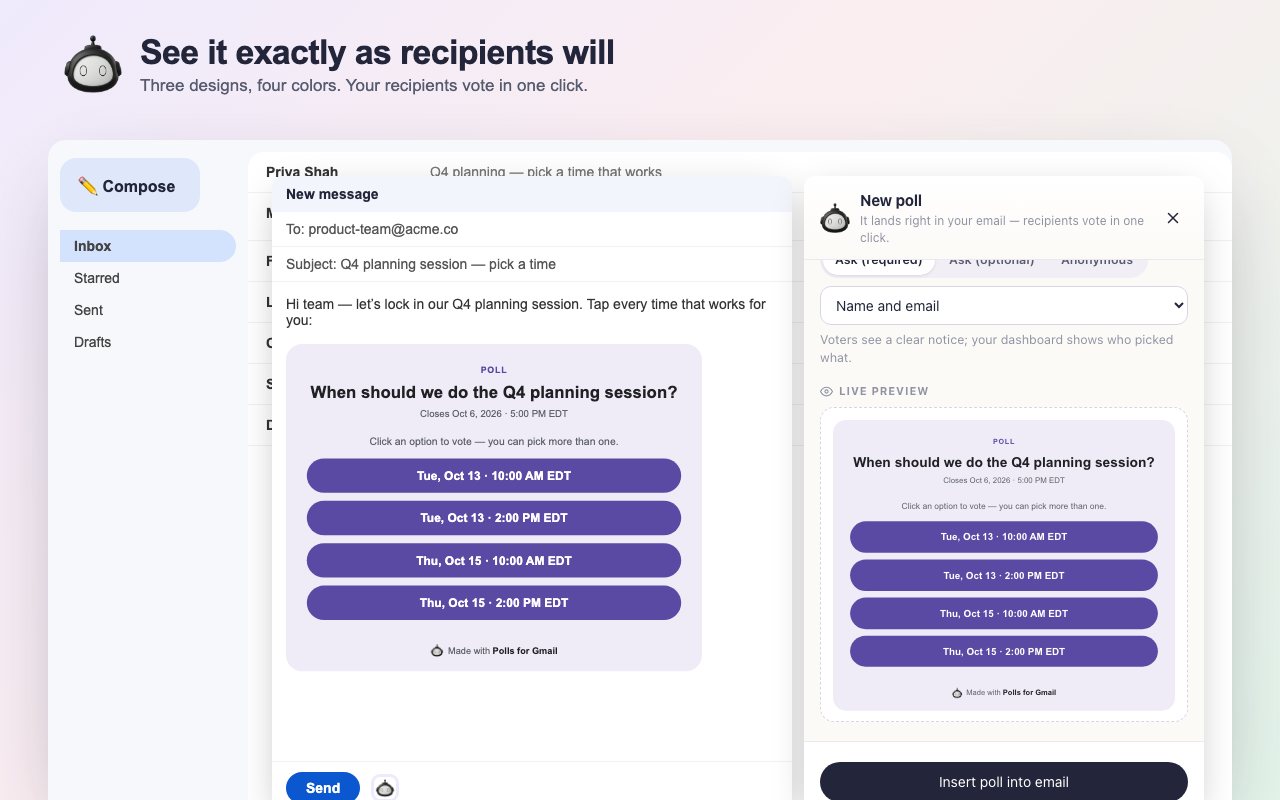
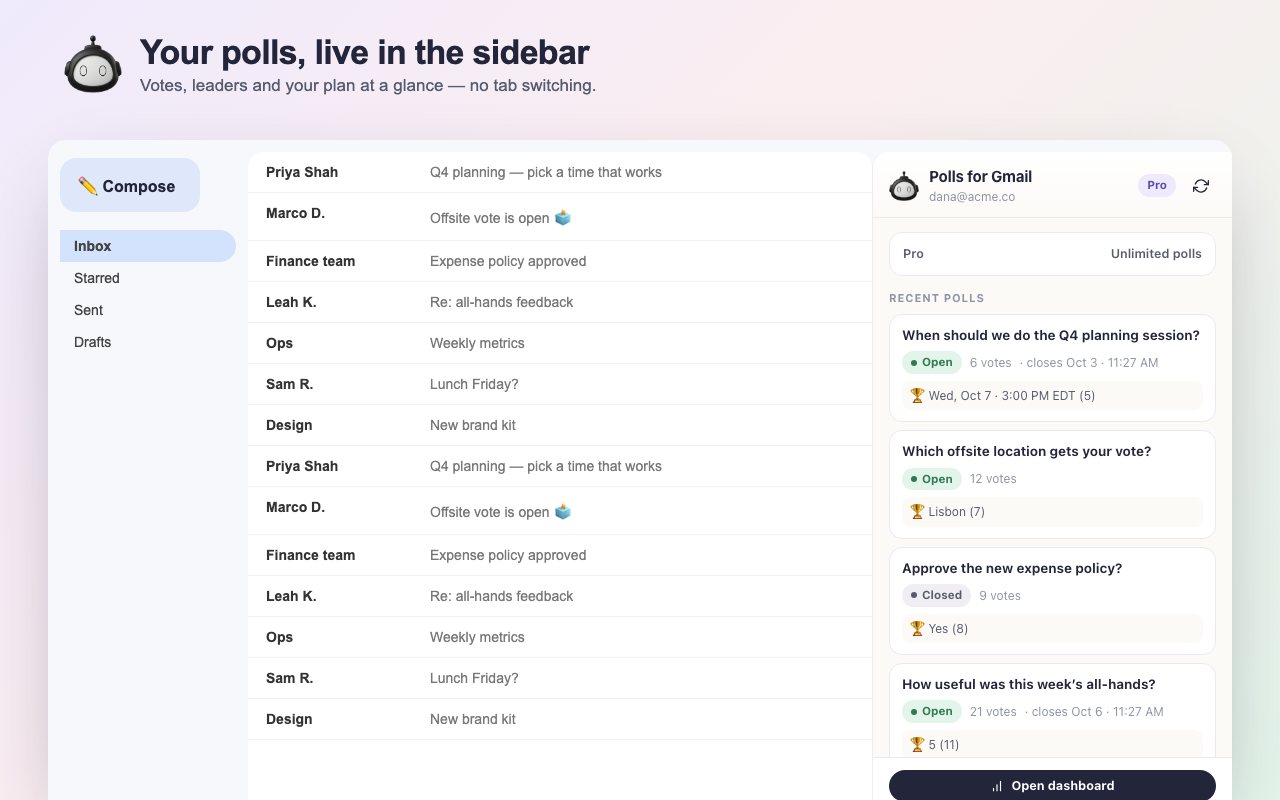
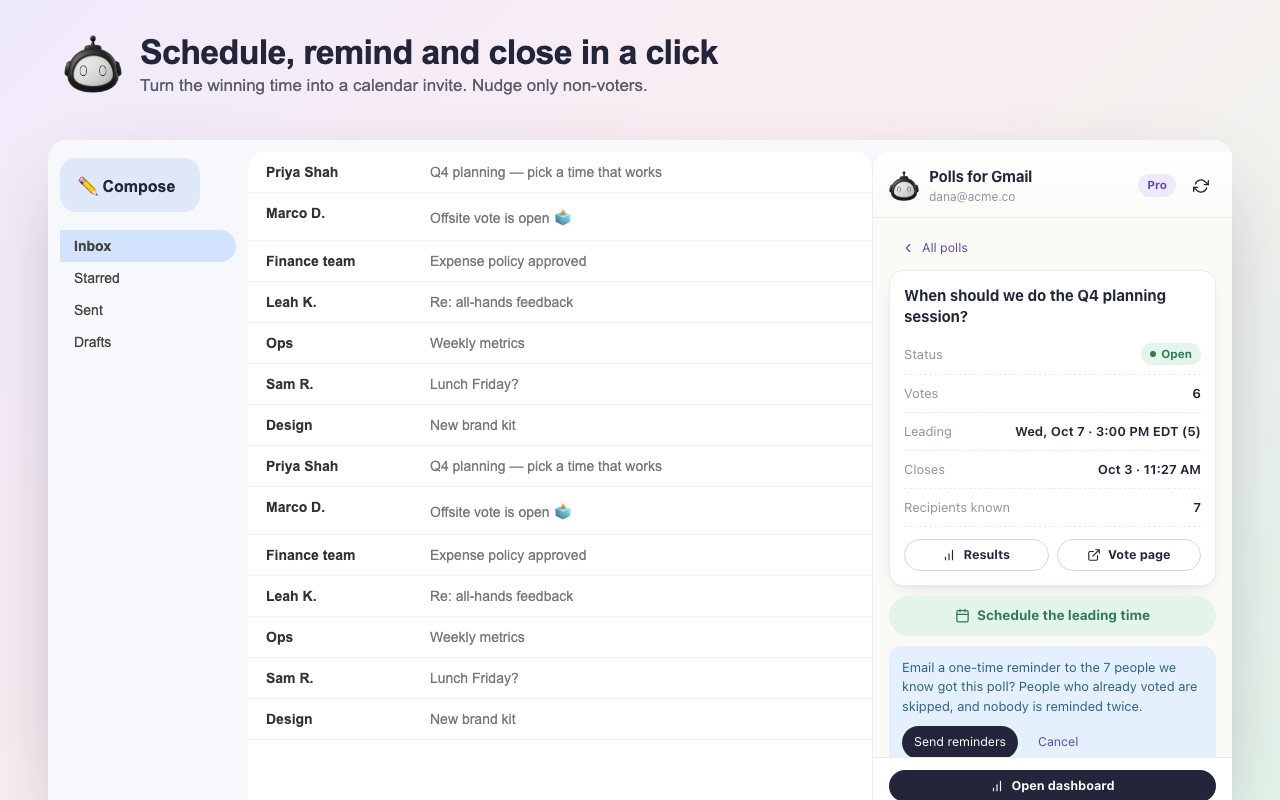
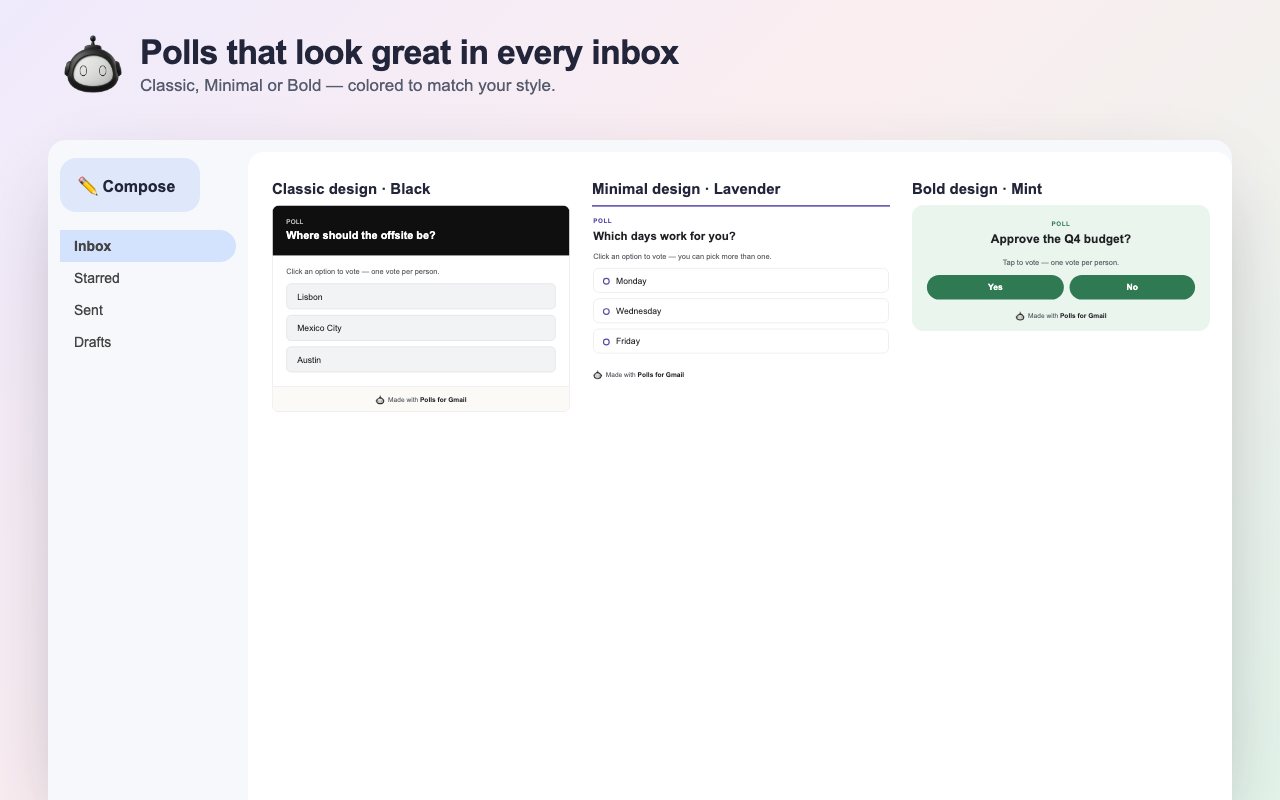
The Polls for Gmail Chrome extension adds a poll button to every Gmail compose window. Build any poll with a live preview, insert it into your email, and recipients vote in one click. Results, reminders and one-click meeting scheduling live in a Gmail sidebar. It’s free, requests no Google account permissions, and never stores or sends your email content.
Watch
What you get
How it works
Install Polls for Gmail from the Chrome Web Store. A short welcome guide opens automatically.
Click Connect, sign in with Google on pollsforgmail.com, and click Connect this browser. No extra Google permissions are requested.
Open a new email, click the robot icon next to Send, build your poll with the live preview, and click Insert poll into email.
Send your email. Recipients vote in one click, and results appear live in the Polls panel in Gmail's right sidebar.
Extension or add-on?
| Chrome extension | Gmail add-on | |
|---|---|---|
| Where it works | Gmail in desktop Chrome | Gmail on the web, in any browser |
| Building a poll | Slide-out builder with a live preview | Add-on sidebar card |
| Live results | Polls panel in Gmail’s sidebar | Add-on homepage card |
| Poll status next to emails | Yes | — |
| Google permissions | None | Gmail compose scopes |
| Your account and polls | Shared. Use either one, or both. | |
Privacy
FAQ
Yes. Polls for Gmail has a free Chrome extension that adds a poll button to every Gmail compose window, a live Polls sidebar, and poll status next to emails that contain a poll. Recipients vote in one click from their inbox, in any email client.
Yes. The extension is free to install, and the Free plan includes every poll type. Standard ($75/year) gives you 5 voted polls a month, and Pro ($120/year) adds unlimited polls, multi-question polls, vote reminders, templates, exports and no branding.
No. It requests no Google account permissions and never stores or sends email content. When you send an email that contains a poll you inserted, it notes the To and Cc addresses of that one email, so reminders and scheduling invites reach the right people.
Both create the same polls in the same account. The Gmail add-on works in Gmail on the web, in any browser. The Chrome extension lives directly in Gmail on desktop Chrome, with a slide-out builder, a live preview, a live results sidebar, and poll status next to emails. Use either one, or both.
Single choice, multiple choice, date and time (tap days on a calendar and pick times), star rating, yes/no, ranked choice, and open-ended responses. On Pro you can ask up to 5 questions in one poll.
No. Polls arrive as part of your email and voting is one click, with no extension, account or app. Polls work in Gmail, Outlook, Apple Mail and every other email client.
When a date and time poll has a winner, click Schedule in the Polls sidebar. Google Calendar opens with the time, a message and every recipient already invited. You review it and click Save.
Right-click the Polls for Gmail icon in Chrome's toolbar and choose Remove from Chrome. Your polls stay safe in your account and dashboard.
Free to install. Every poll type included.